Put your new website on your domain at Liquid Web
About 10 minutes. You change three settings at Liquid Web. Your domain stays where it is and your email keeps working. Your panel checks each setting for you as you make it.
You need your Liquid Web sign-in: your username and password, or the Google account you sign in with. Keep the Domain tab of your SiteSmith panel open: you copy your site's address from it in step 4.
The three settings
| Type | Name | Value |
|---|---|---|
| CNAME | www | your site's address — copy it from the Domain tab of your panel |
| A | @ | 137.66.50.77 |
| AAAA | @ | 2a09:8280:1:0:0:1a0:bb93:0 |
@ means the domain itself; some screens call it the "host" or leave it blank. Leave every other setting exactly as it is: your email depends on them.
Step by step
Sign in to Liquid Web
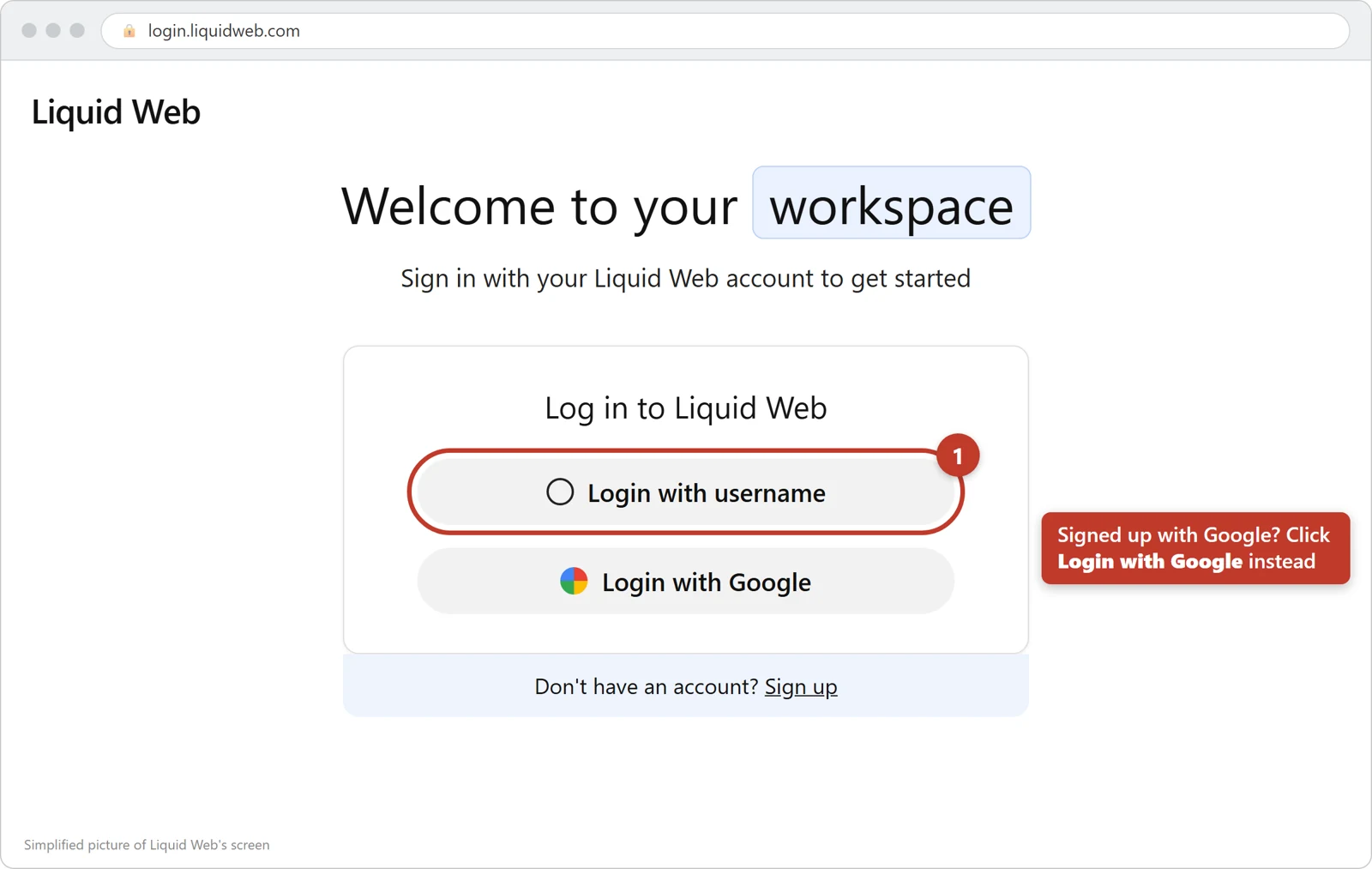
Go to my.liquidweb.com. Liquid Web's sign-in page opens. Click Login with username and type your Liquid Web username and password. If you sign in with Google, click Login with Google instead. If Liquid Web asks for a code, type the one your phone's app shows.
Tap the picture to see it bigger. Open your list of domains
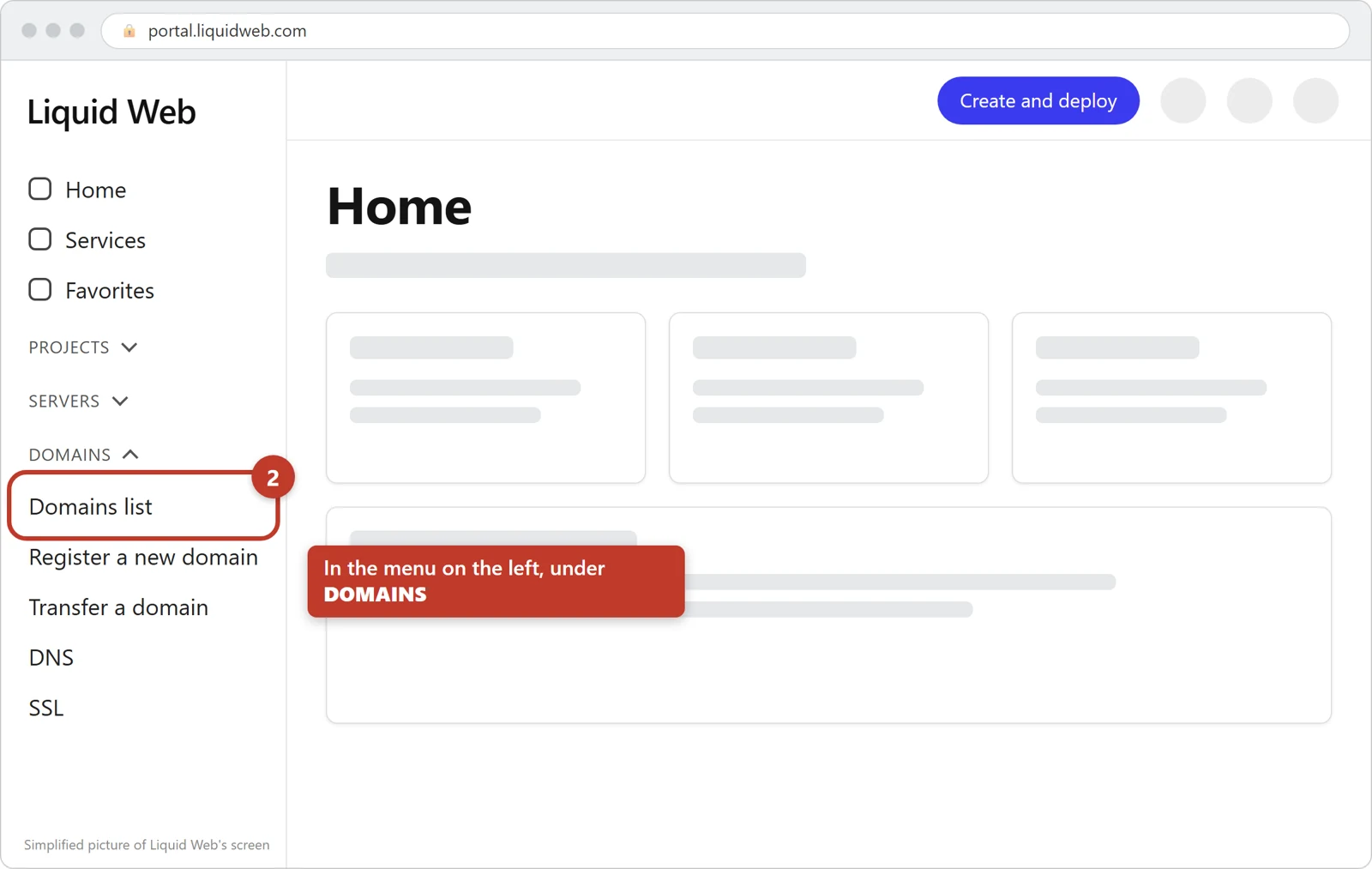
In the menu on the left, under DOMAINS, click Domains list. A page called Domains, DNS & SSL opens, with your domains in a list.
Tap the picture to see it bigger. Open DNS for your domain
Find your domain in the list. Under DNS it should say Hosted. Click the three dots ⋮ at the end of its line, then DNS. A page called DNS for your domain opens, with a list called DNS Records.
Another way to the same page: click your domain's name, then View and Edit DNS.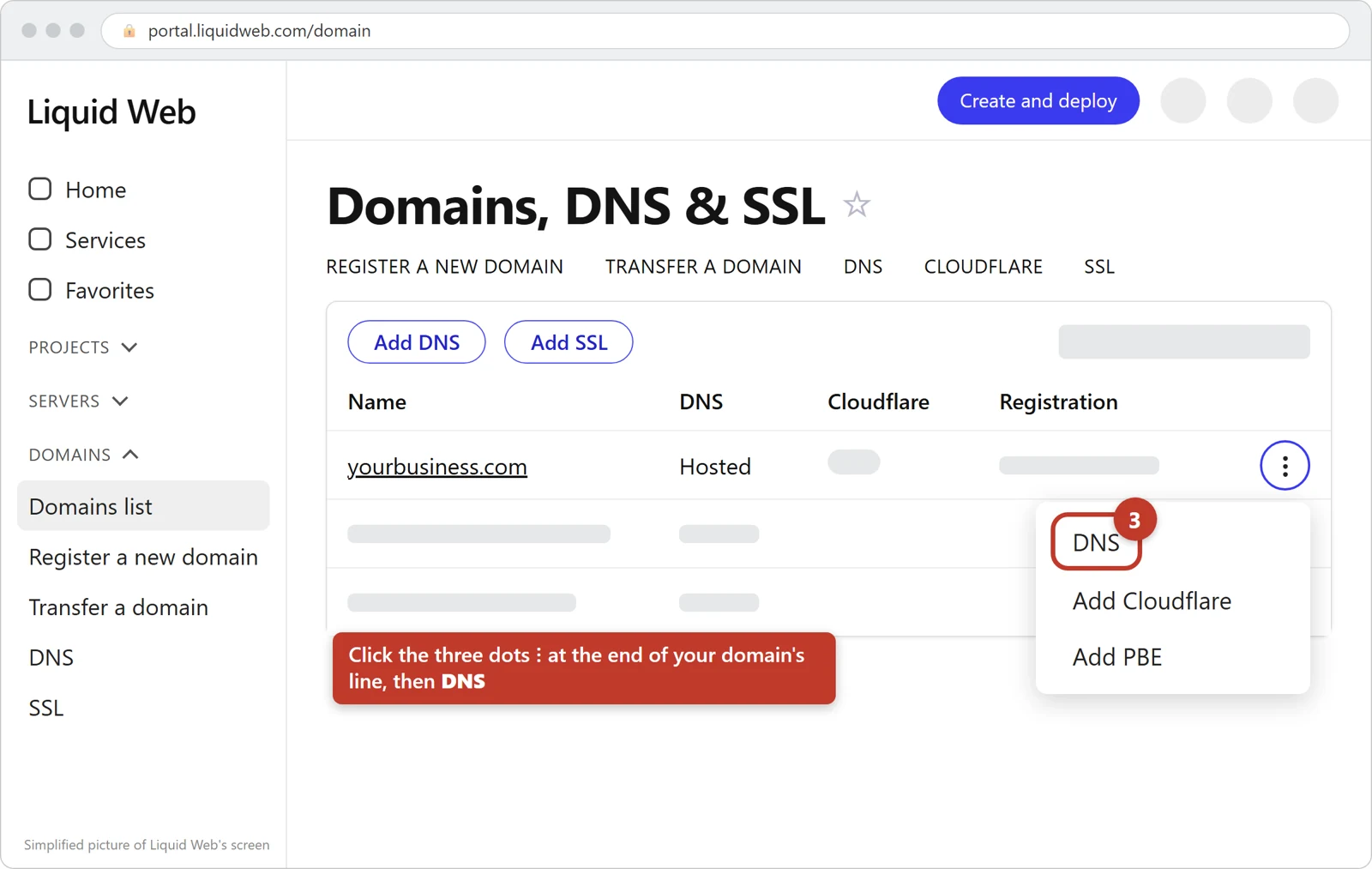
Tap the picture to see it bigger. Change the www record
In DNS Records, find the line with CNAME under Type and www. plus your domain under Name. Click the pencil ✎ at the end of that line. In the box called Domain, delete what is there (often your own domain name) and paste your site's address from the Domain tab of your panel. Click the check mark ✓. Liquid Web says Record updated successfully.
No www line? Add one the way steps 6 and 7 show, but choose CNAME, type www under Subdomain and paste your site's address under Domain. Is the www line an A line instead? Click the three dots ⋮ at the end of it, then the bin, and add the CNAME line.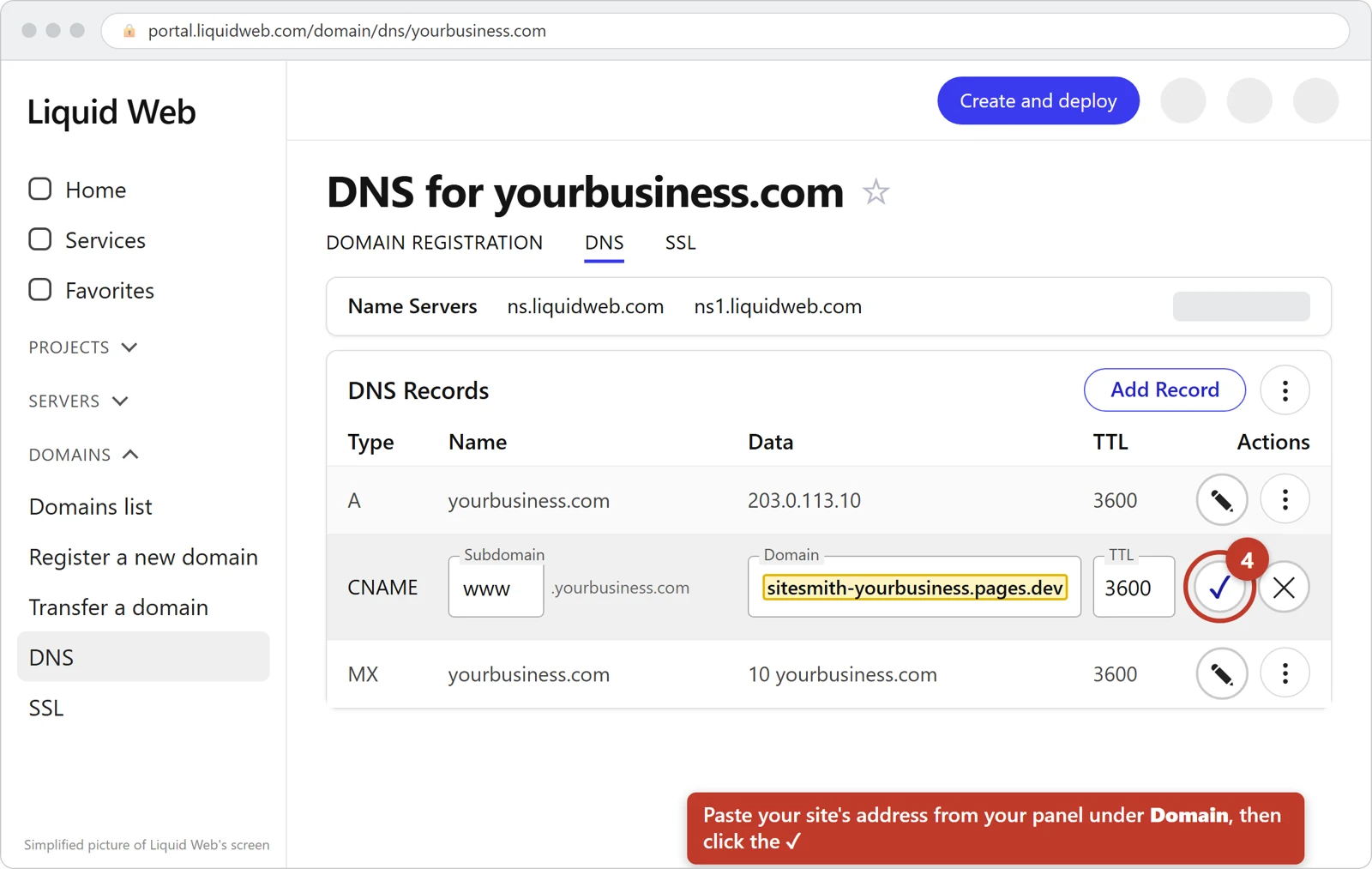
Tap the picture to see it bigger. Change the A record for your domain
First, a check: does the Domain tab of your panel say to set only the www record for now? Then stop here and go to step 9. Your email runs through this line, and we contact you about it.
Otherwise, find the line with A under Type and your domain alone under Name, without www in front. Click its pencil ✎. Leave Subdomain empty: empty means the domain itself. In IP Address, delete the old number and paste the A address from the table above. Click the check mark ✓.
Two or more such A lines? Change one. Remove the others: click the three dots ⋮ at the end of their line, then the bin.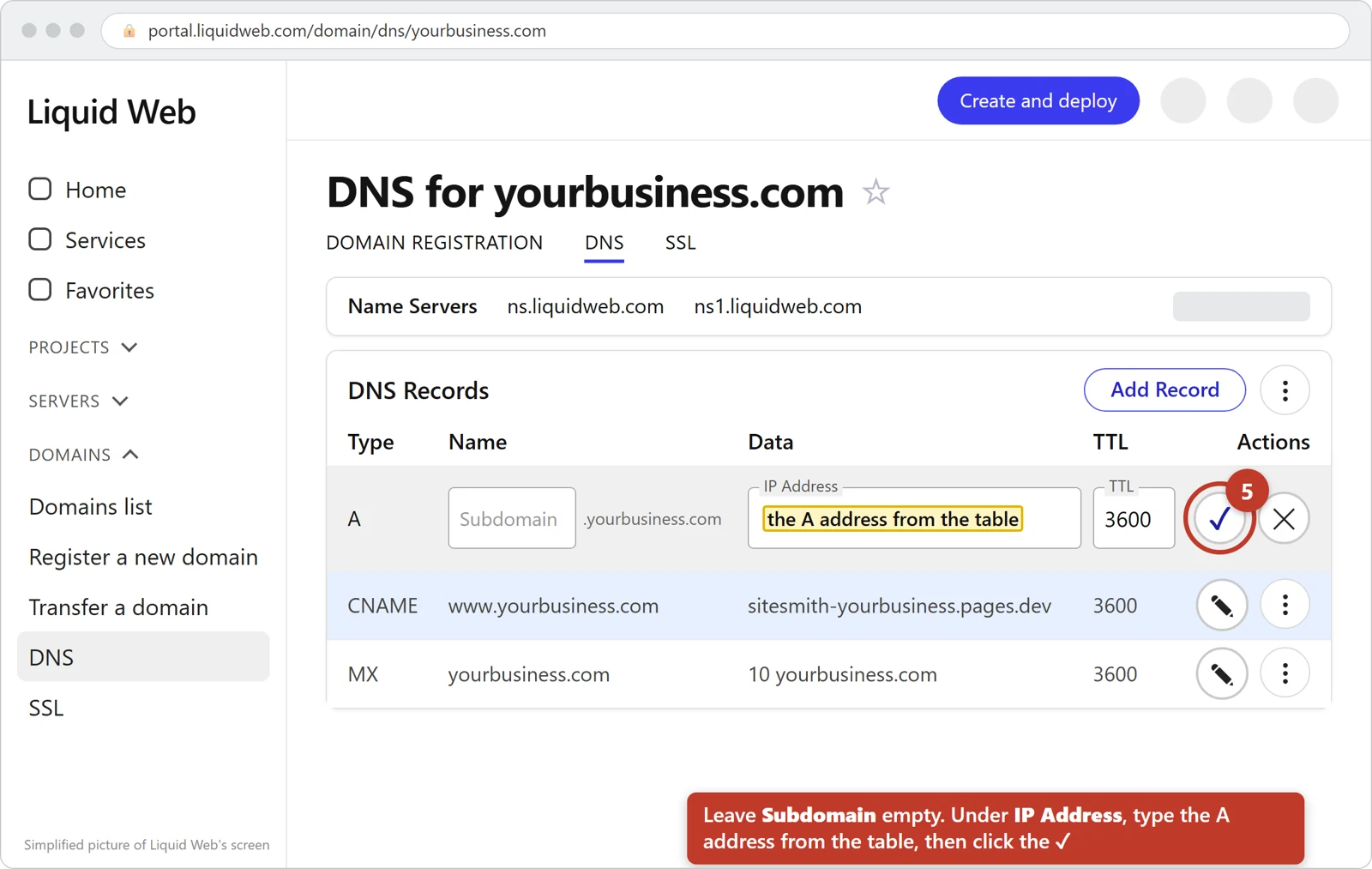
Tap the picture to see it bigger. Start a new line for the AAAA record
Click Add Record at the top of DNS Records. A new empty line opens in the list.
Already have a line with AAAA under Type and your domain alone under Name? Then do not add one: click that line's pencil ✎, put the AAAA address from the table above in IPv6 Address and click the check mark ✓.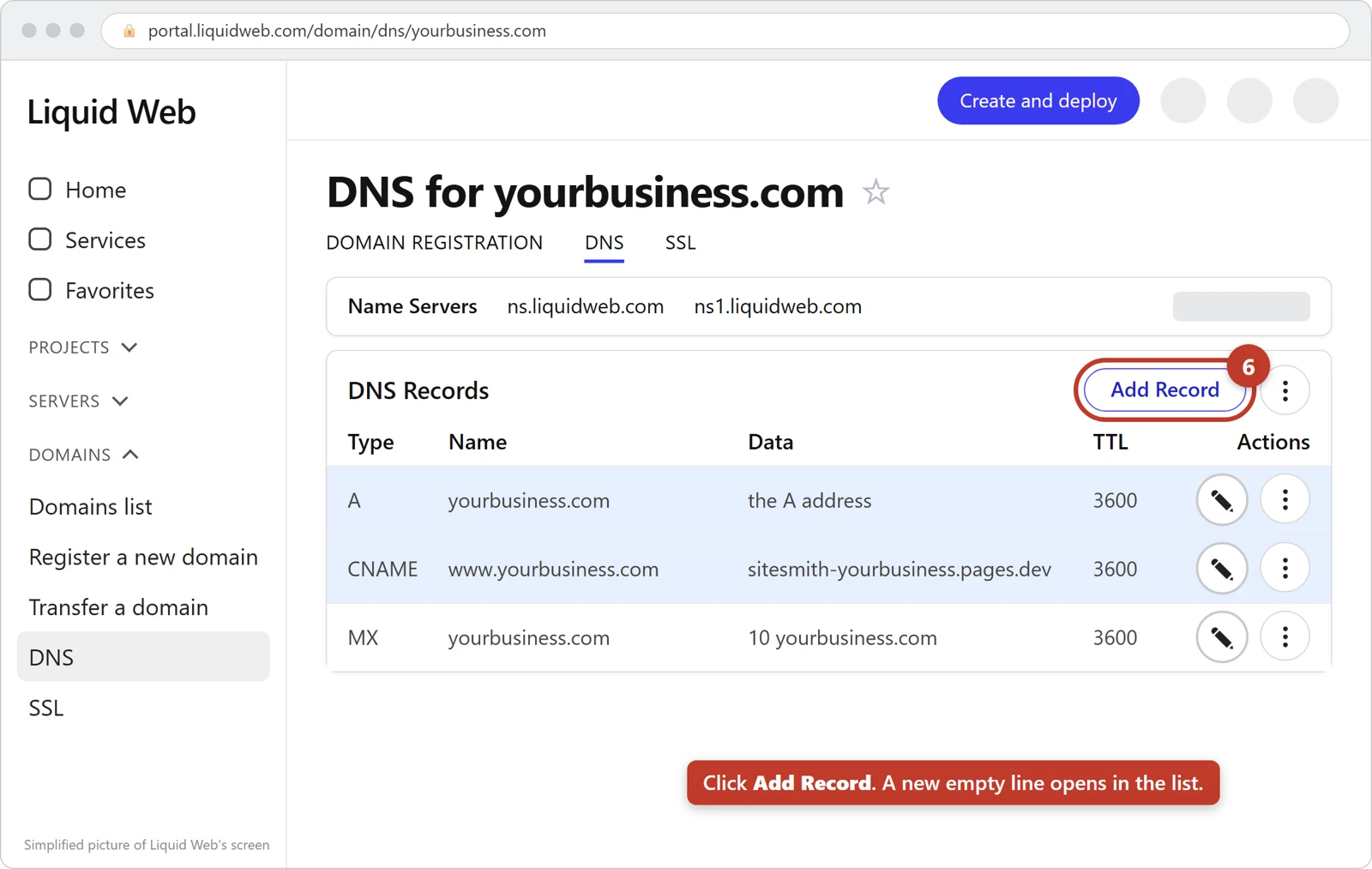
Tap the picture to see it bigger. Fill in the AAAA record
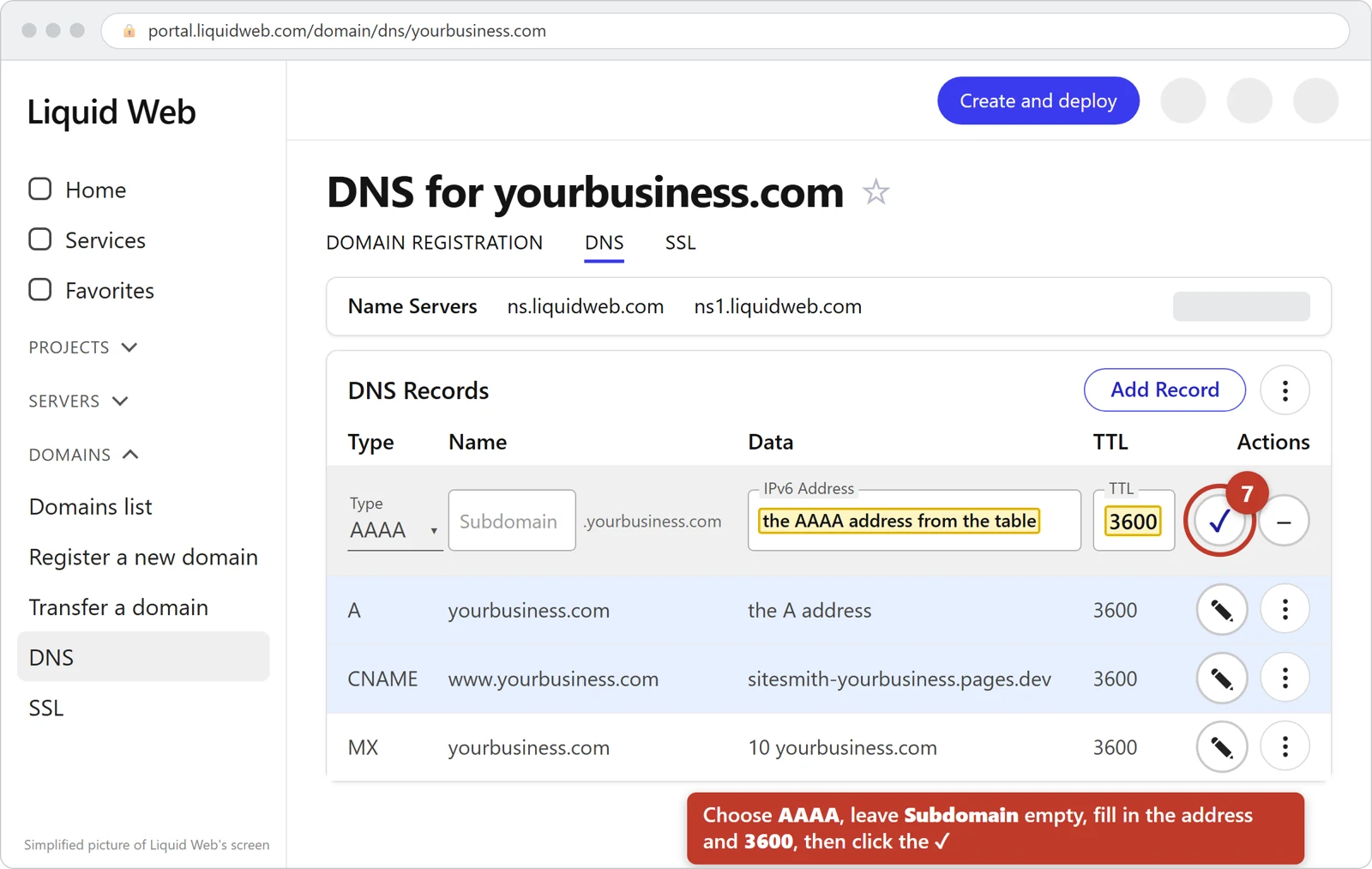
In the new line, click Type and choose AAAA. Leave Subdomain empty. In IPv6 Address, paste the AAAA address from the table above. In TTL, type 3600. Click the check mark ✓. Liquid Web says Record added successfully.
Tap the picture to see it bigger. Look over the list
DNS Records now shows a CNAME line for www with your site's address, and an A line and an AAAA line for your domain alone with the two addresses from the table. Leave every other line as it is, such as MX, TXT and NS, and the lines named mail, ftp or *.
Check it in your panel
Go back to your panel, open the Domain tab and click Check my settings again. Each setting says done once the internet sees it. Liquid Web says this usually takes a few hours and can take up to 48. We email you the moment your new site shows on your domain.
Good to know
Do not click Change Name Servers at the top of the DNS page, and do not change any line with MX, TXT or NS under Type. They carry your email and keep your domain working.
Liquid Web often delivers email to the domain itself: the MX line then shows your own domain, like 10 yourbusiness.com. That is why your panel may ask you to set only the www record for now. Please do just that one; we contact you about your email before the other two.
Under Subdomain, type only www, or nothing for the domain itself. Liquid Web adds your domain name by itself.
No DNS in the three-dots menu, nothing under DNS in the list, or a page that says DNS for this domain is not hosted here? Then your domain's settings are kept somewhere else, often in cPanel / WHM or Plesk on your own server. Ask in your panel's Help tab and we sort it out with you.
A box called External Name Servers on the DNS page means changes there will not take effect. Ask in your panel's Help tab before you change anything.
Stuck, or not sure?
Open the Help tab in your panel and write what you see, in your own words. We answer within minutes and walk you through it.
Changed your mind? Your panel keeps today's settings. At Liquid Web, put the old values back in the www line and the A line, and delete the AAAA line you added (the three dots ⋮ at the end of it, then the bin). Your old website returns, usually within an hour.
Based on Liquid Web's own help pages: Adding and Editing DNS Records, What Are DNS Records?, Using ALIAS DNS Record Types, What are the Liquid Web Name Servers?, Managing Your DNS, What Is a DNS Zone? Guide to Decoding DNS Zone Types, Exploring Your My Liquid Web Account, Enable Two-Factor Authentication in the Liquid Web Portal. The pictures are our own simplified drawings of Liquid Web's screens, not copies of them; Liquid Web's screens may look slightly different. Liquid Web is a trademark of its owner; SiteSmith is not affiliated with Liquid Web. Last checked 2026-10-26.